> ## Documentation Index
> Fetch the complete documentation index at: https://docs.medstrato.com/llms.txt
> Use this file to discover all available pages before exploring further.
# Create a Tender
> Step-by-step guide to creating a new tender in MedStrato: fill in metadata, financials, timelines, and custom fields to set up your bid.
# Create a Tender
Every bid starts with a tender record. The richer your metadata, the better AI features like compliance checking and Tender Intel perform downstream.
> **Scenario:** Sarah, a bid manager at a medical device company, receives a new RFP from a regional hospital. She opens MedStrato, clicks **New Tender**, fills in the key fields in under three minutes, and moves on to uploading documents.
## Open the form
Navigate to **Tenders** → **New Tender**, or go directly to [app.medstrato.com/bids/new](https://app.medstrato.com/bids/new).
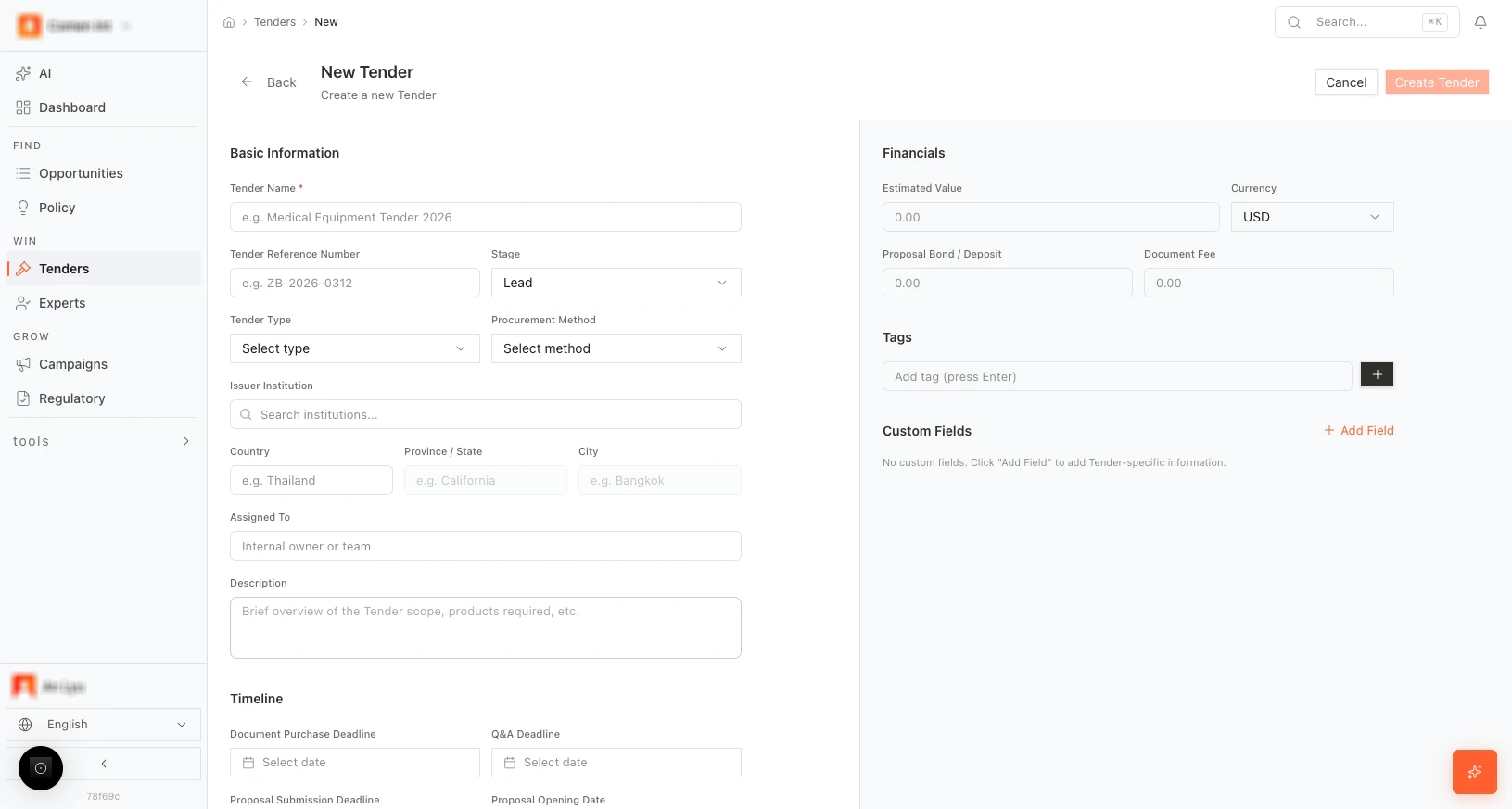 ## Form fields
### Basic information
| Field | Required | Description |
| ----------------------------- | -------- | ---------------------------------------------- |
| **Tender Name** | Yes | Short, descriptive name for internal tracking |
| **Tender Reference Number** | No | Reference or ID from the issuing body |
| **Stage** | No | Current stage (default: **Lead**) |
| **Tender Type** | No | Procurement type (open, restricted, etc.) |
| **Procurement Method** | No | Bidding method (competitive, negotiated, etc.) |
| **Issuer Institution** | No | Search and select the issuing organization |
| **Country / Province / City** | No | Geographic location of the tender |
| **Assigned To** | No | Team member responsible for the bid |
| **Description** | No | Free-text summary of scope and context |
### Financials
* **Estimated Value** — Expected contract value.
* **Currency** — Currency for all amounts.
* **Proposal Bond / Deposit** — Required bond, if any.
* **Document Fee** — Fee to obtain tender documents, if applicable.
### Timeline
* **Document purchase deadline** — Last date to obtain documents.
* **Q\&A deadline** — Last date to submit clarification questions.
* **Proposal submission deadline** — Final submission date.
* **Proposal opening date** — When bids are opened.
### Tags and custom fields
* **Tags** — Add labels for filtering (e.g., "urgent", "hospital", "oncology").
* **Custom fields** — Click **+ Add Field** for internal codes or categories.
## Save
Click **Create Tender** to save. You are taken to the tender overview where you can begin uploading documents.
Fill in **Issuer Institution**, **Country**, and **Estimated Value** early — these fields power AI analysis in later stages.
## More scenarios
> **Parallel tenders:** A sales director creates five tenders in a single morning — one per region — using consistent metadata and tags. Later, the dashboard shows pipeline value by country, helping the CEO prioritize resources.
> **Template reuse:** A bid coordinator duplicates a won tender as a template for a similar upcoming procurement. The metadata, product catalog, and pricing structure carry over — only the requirements need updating.
## Next step
[Upload documents and run AI parse →](/guides/tenders/document-parse)
## Related resources
See how the website explains spec matching, compliance evidence, and product matching.
Review the complete workflow from RFP intake to final submission.
## Form fields
### Basic information
| Field | Required | Description |
| ----------------------------- | -------- | ---------------------------------------------- |
| **Tender Name** | Yes | Short, descriptive name for internal tracking |
| **Tender Reference Number** | No | Reference or ID from the issuing body |
| **Stage** | No | Current stage (default: **Lead**) |
| **Tender Type** | No | Procurement type (open, restricted, etc.) |
| **Procurement Method** | No | Bidding method (competitive, negotiated, etc.) |
| **Issuer Institution** | No | Search and select the issuing organization |
| **Country / Province / City** | No | Geographic location of the tender |
| **Assigned To** | No | Team member responsible for the bid |
| **Description** | No | Free-text summary of scope and context |
### Financials
* **Estimated Value** — Expected contract value.
* **Currency** — Currency for all amounts.
* **Proposal Bond / Deposit** — Required bond, if any.
* **Document Fee** — Fee to obtain tender documents, if applicable.
### Timeline
* **Document purchase deadline** — Last date to obtain documents.
* **Q\&A deadline** — Last date to submit clarification questions.
* **Proposal submission deadline** — Final submission date.
* **Proposal opening date** — When bids are opened.
### Tags and custom fields
* **Tags** — Add labels for filtering (e.g., "urgent", "hospital", "oncology").
* **Custom fields** — Click **+ Add Field** for internal codes or categories.
## Save
Click **Create Tender** to save. You are taken to the tender overview where you can begin uploading documents.
Fill in **Issuer Institution**, **Country**, and **Estimated Value** early — these fields power AI analysis in later stages.
## More scenarios
> **Parallel tenders:** A sales director creates five tenders in a single morning — one per region — using consistent metadata and tags. Later, the dashboard shows pipeline value by country, helping the CEO prioritize resources.
> **Template reuse:** A bid coordinator duplicates a won tender as a template for a similar upcoming procurement. The metadata, product catalog, and pricing structure carry over — only the requirements need updating.
## Next step
[Upload documents and run AI parse →](/guides/tenders/document-parse)
## Related resources
See how the website explains spec matching, compliance evidence, and product matching.
Review the complete workflow from RFP intake to final submission.