

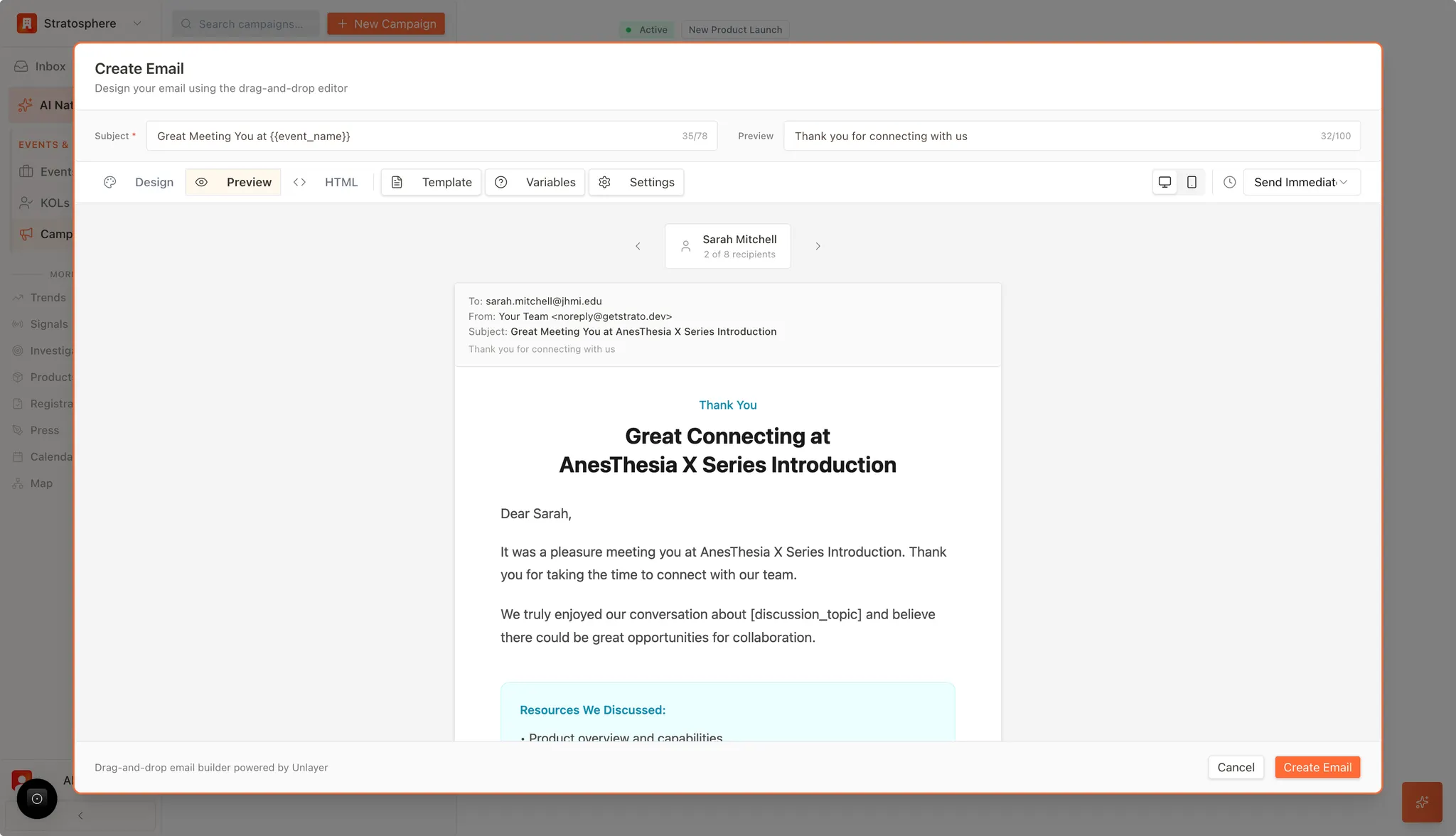
What you can do
- Fill in all variables used by a template from one place.
- Separate “template-level” inputs (event name, sender title) from “recipient-level” inputs (first name).
- Avoid broken placeholders in previews and test sends.
Where to find it
- In a campaign email editor, open the Variables panel.
Variable types
Variables typically fall into two buckets:- Custom variables: you fill these for the campaign/email (e.g., event name, calendar URL, discussion topic, sender name/title).
- Auto-filled variables: the platform fills these from recipient/system data (e.g.,
{{first_name}},{{unsubscribe_url}}).
Steps
- Open Variables in the email editor.
- Fill required custom variables.
- Click Done to apply values back into the design.
Troubleshooting
- If you still see
{{...}}in preview, a required custom variable is missing. - If personalization looks wrong for a recipient, check audience data (e.g., missing first name) and retry preview.