

Document Upload & AI Parse
Once your tender is created, upload the source documents and let AI break them into structured, actionable requirements.Scenario: A procurement team receives a 200-page hospital RFP. They upload the PDF, run AI parse, and within seconds have 47 structured parameters organized into categories — ready for product matching in the Technical editor.
Upload documents
Open your tender and go to the Files tab. Upload the RFP, technical specifications, or any supporting documents. Supported formats include PDF and DOCX.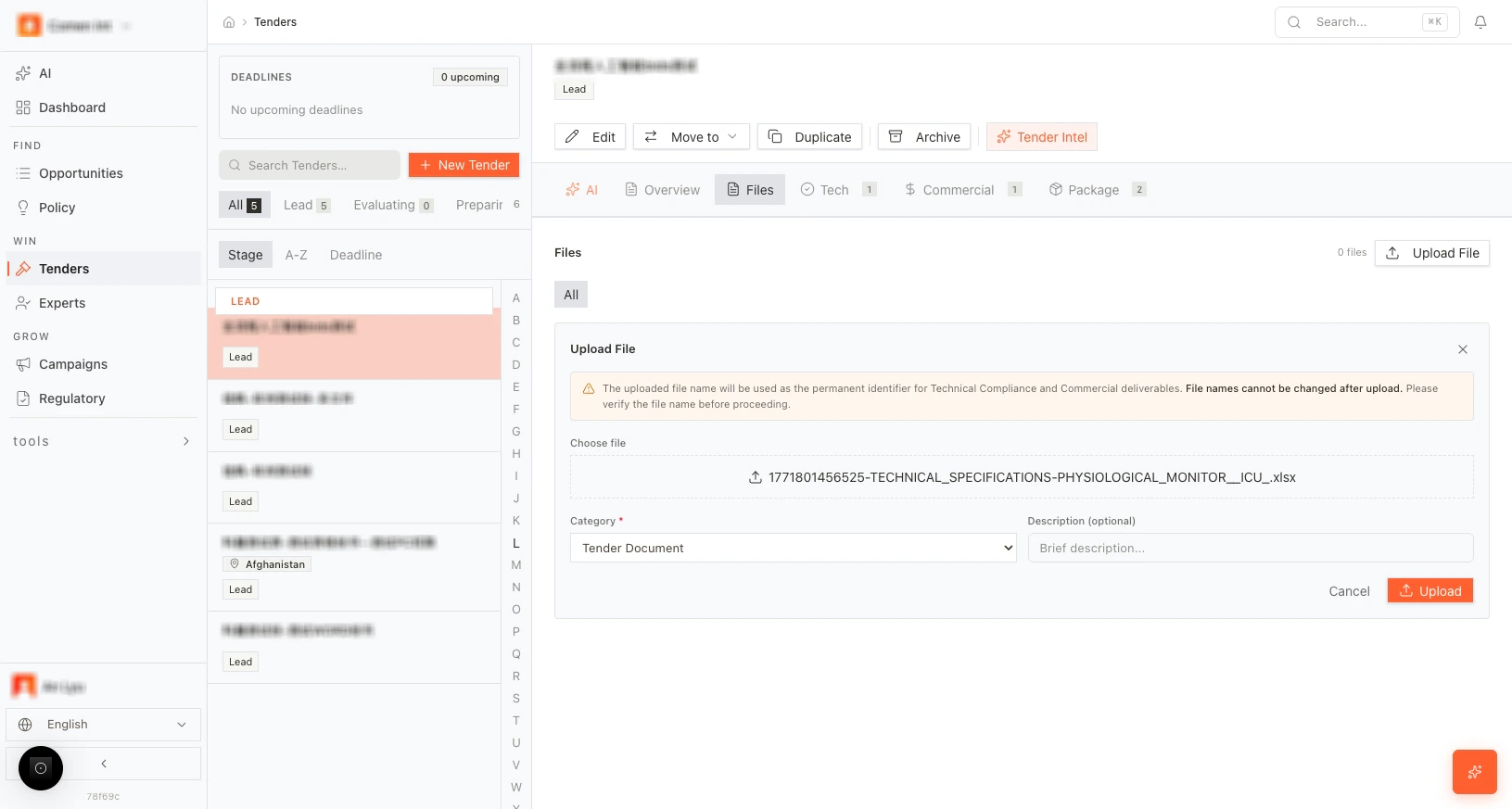
Run AI parse
After uploading, click AI Parse (or the equivalent button) to start extraction.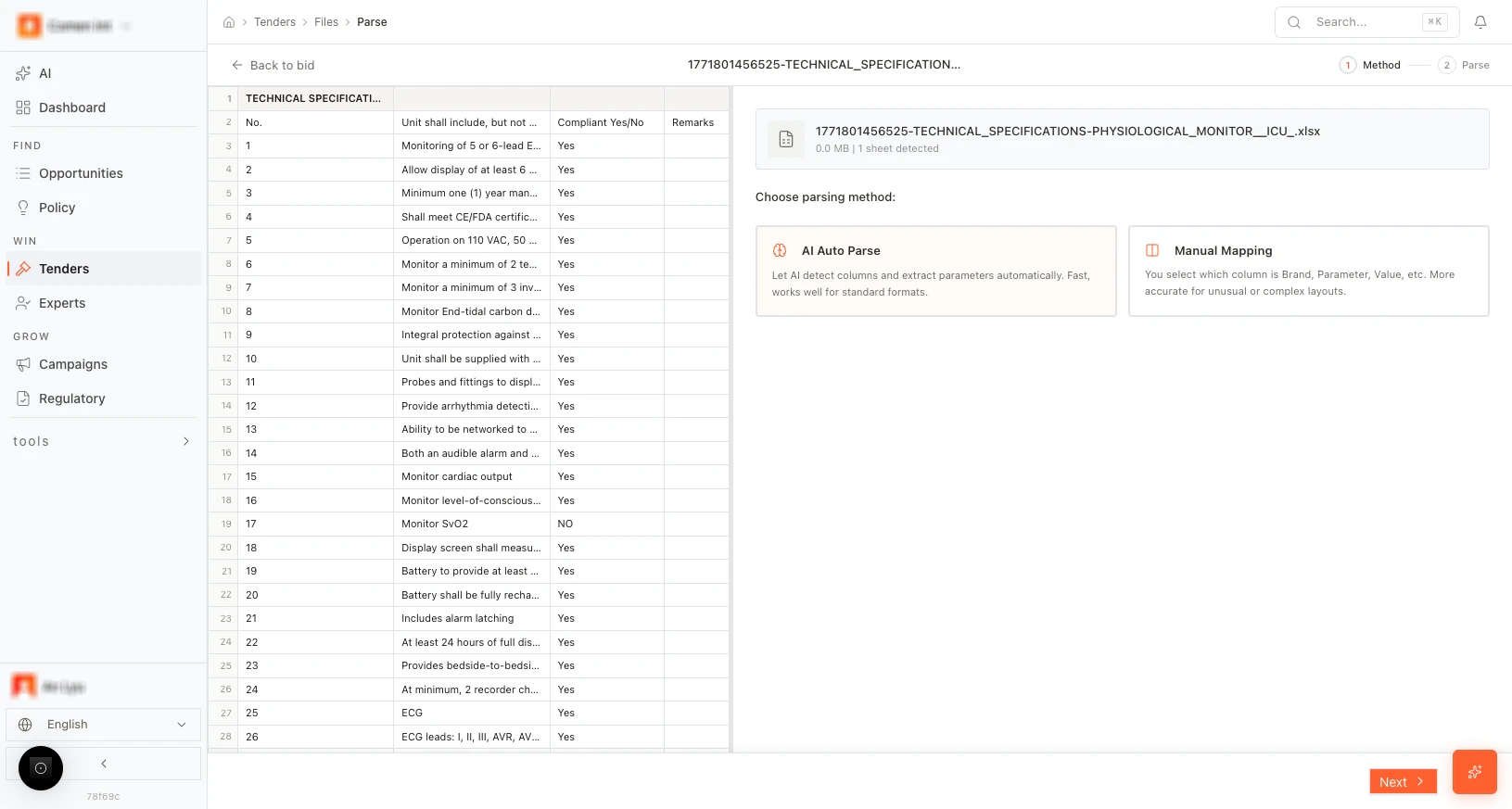
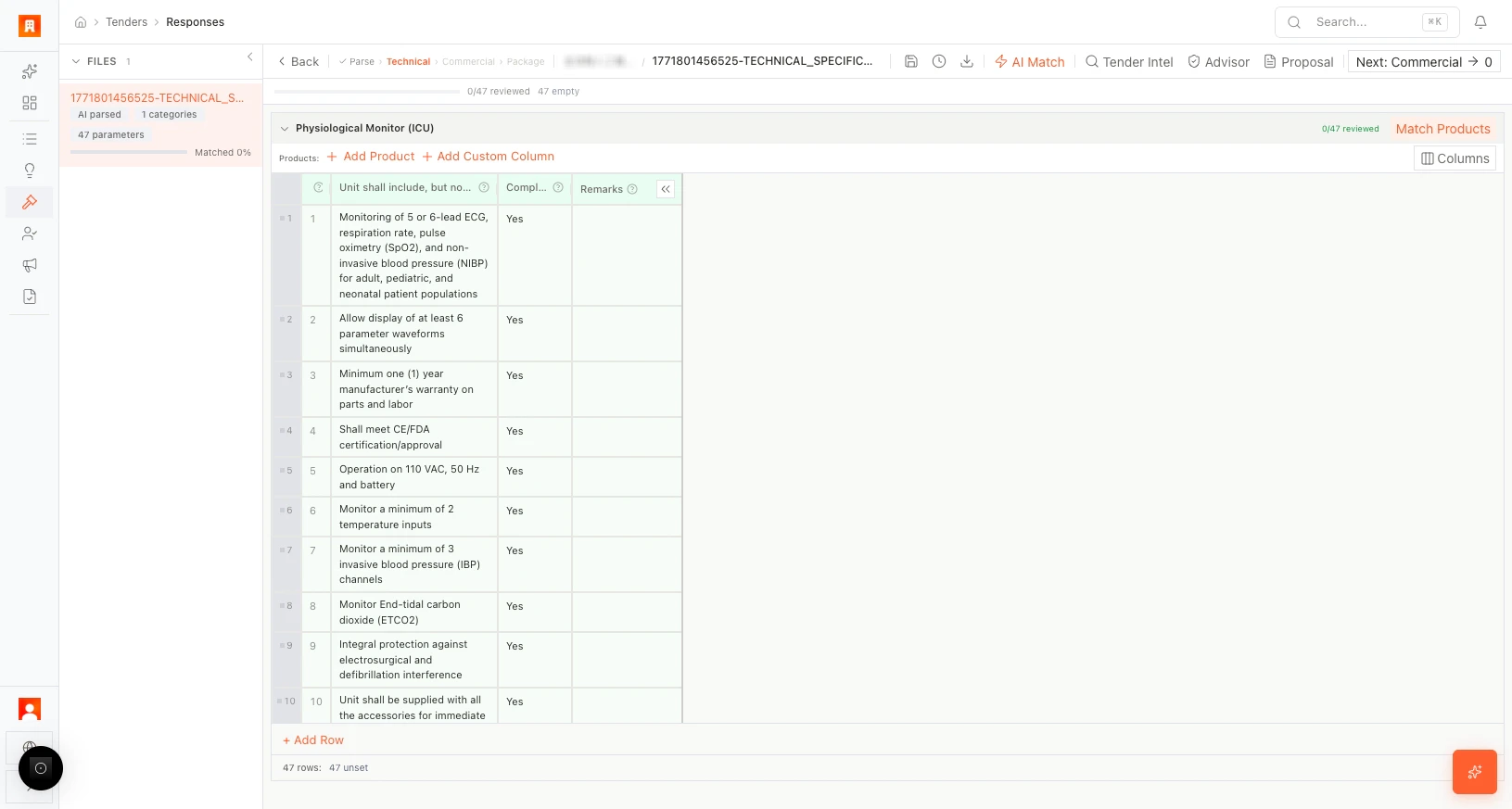
- Categories — Logical groupings of requirements (e.g., equipment specs, service terms).
- Parameters — Individual requirements within each category.
- Matched % — Shows how many requirements are linked to your products (starts at 0%, updates as you match in the Technical editor).
What happens next
From the parse results screen, you can enter the Technical editor to begin matching products to requirements.More scenarios
Multi-document tender: A government RFP arrives as six separate files — technical specs, administrative requirements, pricing template, evaluation criteria, draft contract, and amendments. The bid team uploads all six. AI parse consolidates requirements across documents into a single structured view, flagging where amendments override original specs.
Tight deadline: An urgent tender lands on Friday afternoon with a Monday submission deadline. The compliance lead uploads the 90-page PDF, runs AI parse, and has structured requirements ready in under a minute — leaving the weekend for technical and commercial work instead of manual extraction.
Next step
Open the Technical editor →Related resources
Tender automation overview
Review how document parsing connects to matching, compliance, pricing, and proposal export.
Full tender use case
Follow the complete workflow from RFP intake to final submission.
Create a tender first
Set up tender metadata before uploading source files.