

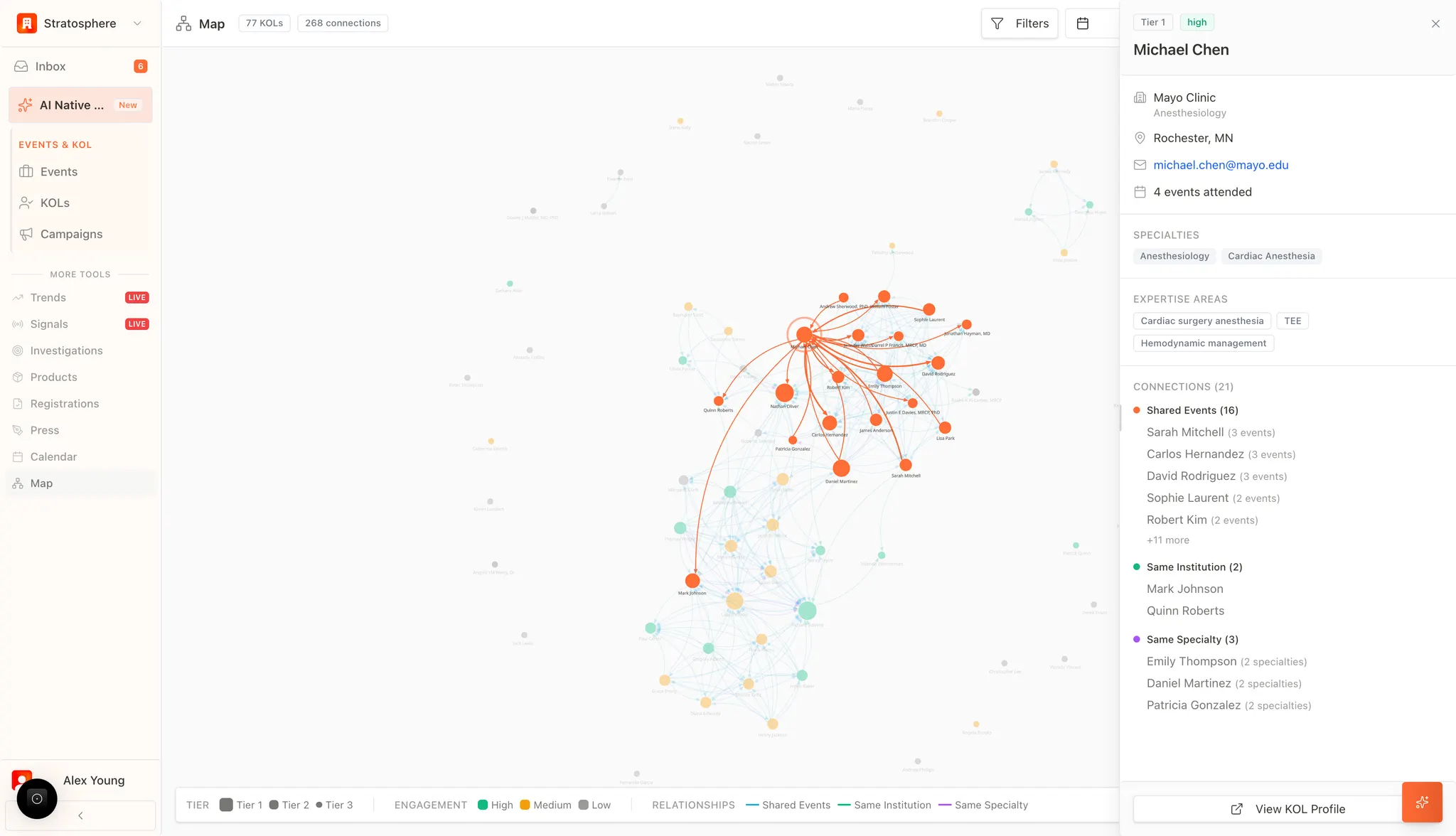
What you can do
- Isolate a KOL’s immediate network with one click.
- See connections grouped by relationship type.
- Jump to the full KOL profile for deeper insights.
Steps
- Open the Network map.
- Click a KOL node.
- Review the side panel categories and use View KOL Profile if needed.
- Shared events: KOLs who co-attended events (often shown with a count of shared events).
- Same institution: KOLs at the same organization.
- Same specialty: KOLs with the same clinical domain across institutions.
Context and navigation
Alongside the network data, the side panel provides immediate visibility into the expert’s professional dossier:- Credential Summary: Displays the expert’s Tier, Engagement Level, Primary Institution, and specific expertise areas (e.g., Hemodynamic management, TEE).
- Communication Access: Provides verified contact information (e.g., professional email) for immediate outreach.
- Full Profile Integration: The View KOL Profile button allows for a seamless transition from the visual map to the expert’s comprehensive AI-driven intelligence profile for deep-dive analysis.
Questions you can answer
- Which KOLs are most connected within an institution?
- Who are the close peers of a Tier 1 KOL in a specialty?
- Which event clusters could be used to expand outreach?